

Agentic applications integrate AI agents into an application. These agents run alongside the deterministic code we have always written and which is still there, but certain tasks are now handled by the agents.
If these applications are user-facing and the agent stretches into the user interface itself, then we are talking about Agentic UI.
Alongside Agentic UI, we very often encounter terms like Generative UI, AG-UI, A2UI, A2A, and more. Given how fast the AI industry is moving, understanding these developments, and even just keeping up with them, can feel overwhelming.
In this article, we will explain what Agentic UI is and how it relates to these other concepts and technologies. We will use CopilotKit, a framework that connects the agent running in the backend to the frontend. Under the hood, CopilotKit uses the AG-UI protocol. We are going to discuss a selection of AG-UI’s most useful features.
Our example is MacroQuest, an Angular application for logging meals. You can find the code on GitHub.
Five Stages of AI Integration
Agentic UI has no strict definition and can be interpreted differently. In this article, we align it closely with the concepts behind AG-UI. AG-UI has a formal specification. The same goes for A2UI and MCP Apps.
We define five stages. At each stage, AI takes on more tasks and gradually displaces deterministic code. Therefore, we increasingly tighten safety and boundary constraints.
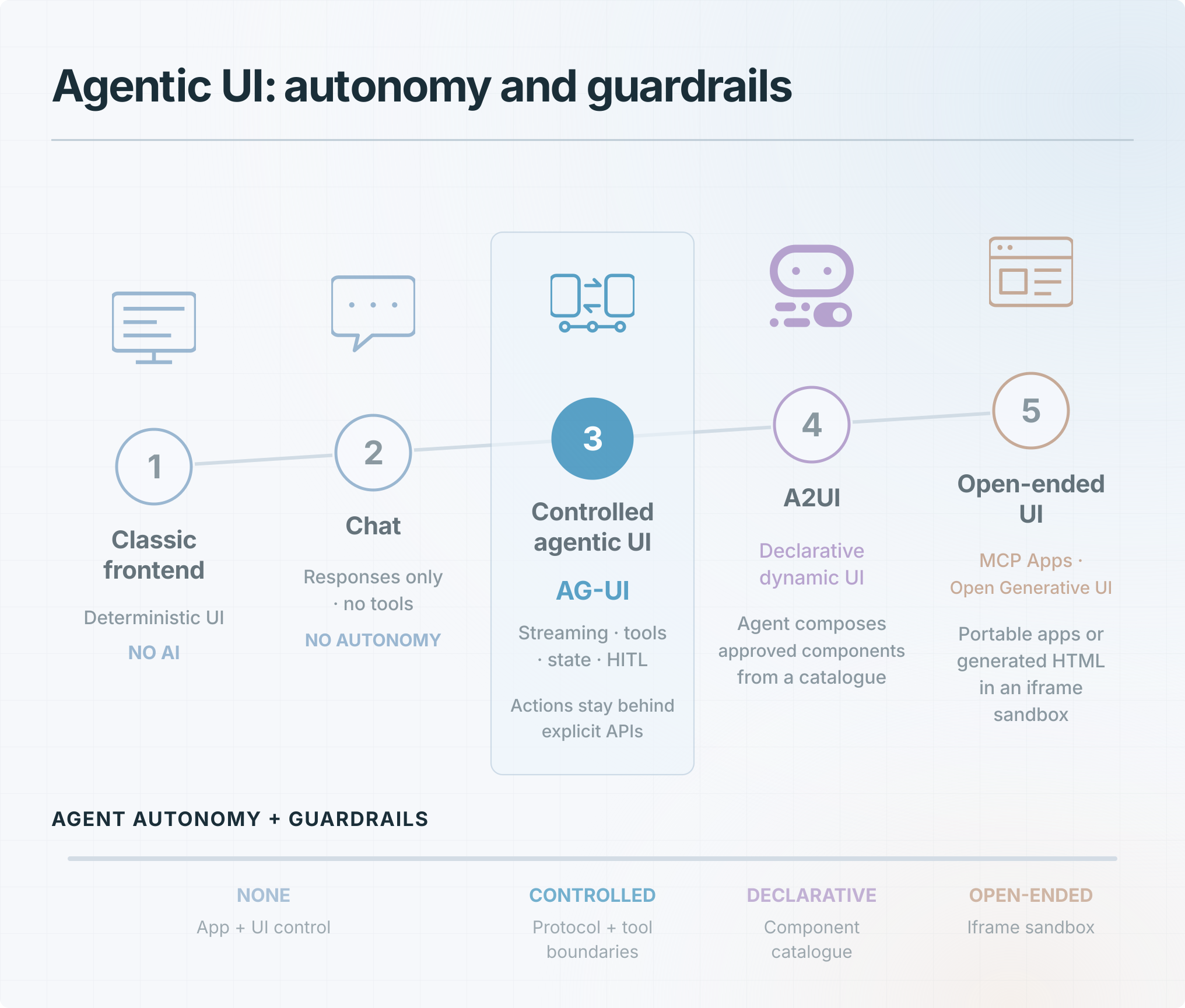
The first stage is a traditional app with no AI, just deterministic software like before the AI era.
The second stage adds a simple text chat. It isn’t connected to the app and is not aware of it. Think of it as a basic customer support chat, just Q&A with no app integration.
The third stage is what this article is about. The agent is connected to the frontend and can read or modify state, or trigger actions, within the limits we define. The DOM is updated only indirectly. Direct rendering is not possible. This is what we call Agentic UI, and we use the AG-UI protocol to connect the agent to the frontend.
In our interpretation, Generative UI starts with the fourth stage. Here, the agent uses the A2UI protocol to describe a component tree. The available components are provided by us in the form of a catalog. A framework-specific renderer has to render that tree to the DOM.
The fifth stage is the all-in approach. Here, the agent can generate whatever it wants, but within a defined boundary: a sandboxed iframe. This provides much stronger isolation than before because the generated UI has no direct access to our application. There are different ways to achieve this. CopilotKit calls this Open-ended Generative UI, and MCP Apps provides a standard for delivering these interfaces.
Stay Updated
Get new essays and workshop announcements in your inbox.
Starting with a Basic Chat
We start with stage two, which is a simple chat. But we are going to use AG-UI for that.
A chat could be implemented in a straightforward way. The frontend provides a chat text box and sends the user’s prompt to an existing backend endpoint. That endpoint connects to a model, passes on the prompt, and returns the response once the model has finished.
That works. But there are a lot of things we would have to think about afterwards. For example, streaming. Should the user wait until the model has finished, or do we show the text as it arrives from the model? Or activity updates. The user wants to know what the agent is actually doing. Then there are responses formatted in Markdown, resuming sessions, human-in-the-loop interactions, and much more.
The protocol defines how the agent and frontend should communicate and supports the interactions needed for these features and more. CopilotKit implements AG-UI and provides integrations for both backend and frontend.
CopilotKit also means decoupling. We can replace the backend and the frontend as long as the replacement is supported by CopilotKit.
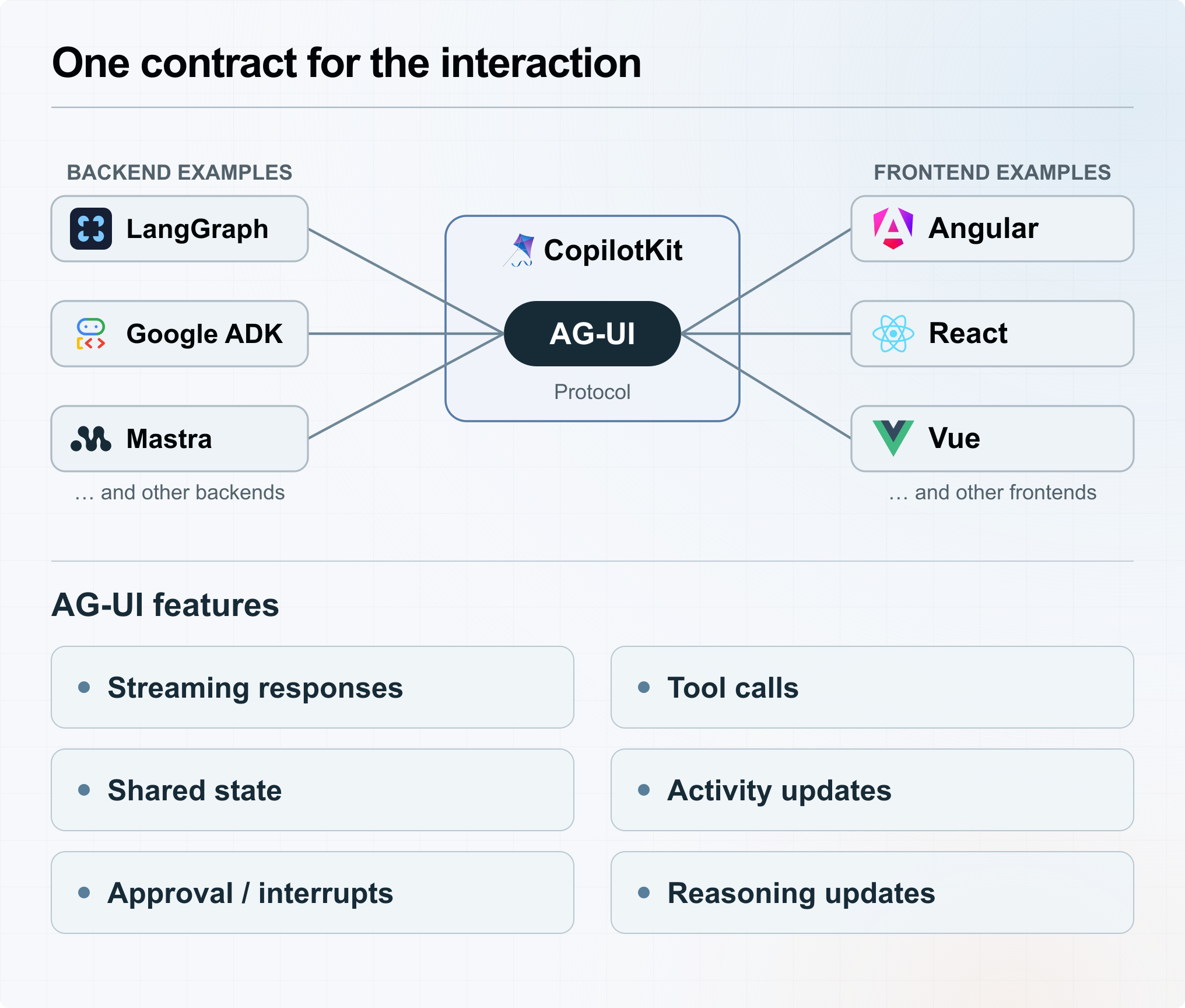
We start on the backend. In our case, we use Hono. Other setups can use agent frameworks such as Mastra, LangGraph, or Google ADK.
CopilotKit provides a handler that we expose through a Hono endpoint. We create a runtime and register our agent with it. For this first step, we use CopilotKit’s built-in agent, which handles the model connection.
We use Gemma 4’s 26-billion-parameter model through OpenRouter. You could choose a more expensive model, but we have found Gemma 4 to be a good fit for these basic use cases.
First, we define the agent:
server/agent.ts
export const agent = new BuiltInAgent({ model: 'openai/google/gemma-4-26b-a4b-it', apiKey: modelApiKey,});The configuration module loads the API key and sets OPENAI_BASE_URL to the model provider’s endpoint. For OpenRouter, that endpoint is https://openrouter.ai/api/v1.
We then register the agent and expose the runtime through Hono. The following excerpt leaves out the CORS configuration, health endpoint, and server logging:
server/index.ts
const runtime = new CopilotRuntime({ agents: { default: agent }, runner: new InMemoryAgentRunner(),});const app = new Hono();const copilotHandler = createCopilotRuntimeHandler({ runtime, basePath: '/api/copilotkit',});app.all('/api/copilotkit/*', (c) => copilotHandler(c.req.raw));serve({ fetch: app.fetch, port });Next, we connect the frontend. In Angular, we do this via provideCopilotKit. We provide runtimeUrl as a configuration property and point it to our backend endpoint.
src/app/app.config.ts
export const appConfig: ApplicationConfig = { providers: [ provideCopilotKit({ runtimeUrl: 'http://127.0.0.1:3210/api/copilotkit', }), ],};We then add CopilotChat to our component’s imports and place <copilot-chat /> in its template. This gives us the chat interface connected to our backend agent.
Once both backend and frontend are running, users can type messages into the chat and receive responses. We should see a response streamed straight into the chat. The text appears as soon as the agent sends it. Markdown formatting should also be rendered correctly.
But we still need a minimum level of protection. At the moment, users can ask whatever they want, and we are paying for the tokens. Our application is meant to be a food logger. Therefore, we add a system prompt telling the model to answer only food-related questions. We configure this in the agent on the server.
server/agent.ts
export const agent = new BuiltInAgent({ model: 'openai/google/gemma-4-26b-a4b-it', apiKey: modelApiKey, prompt: 'You are MacroQuest, you are a food logger. Only answer questions about food and similar things.',});If you now ask the agent to write a book about software development, it should decline your request.
To inspect the communication between the agent and frontend, you can install our AG-UI / A2UI Inspector, a Chrome extension by Soverius AI, from the Chrome Web Store.
Agent Context — A Shared Understanding
Now it is time to move from stage two to stage three, where our agent also has access to the frontend. We start with read-only access.
If we ask the agent what we have eaten today, it will probably respond that it does not know or ask us to provide the necessary information. But the meal log in our frontend already contains that data. We need to provide the agent with this context.
We manage our application state in MacroQuestStore. To make that state available to the agent, we use connectAgentContext.
src/app/macroquest/application/macro-quest-store.ts
constructor() { connectAgentContext(() => ({ description: 'This contains the meals, the goals, the selected meal, and the active date.', value: JSON.stringify(this.state()), }));}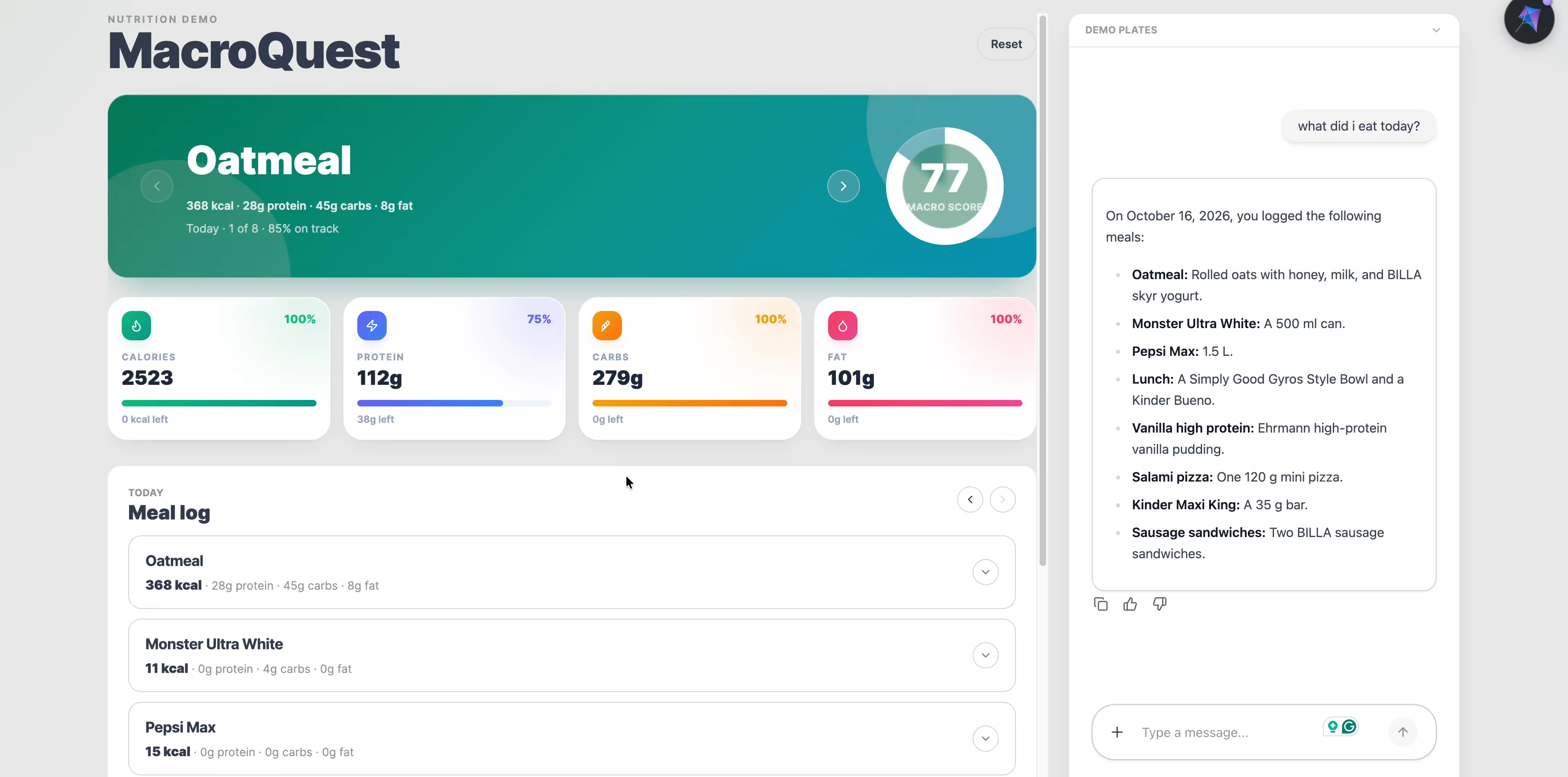
CopilotKit also supports the concept of agent state, which can also be updated by the agent. We use context here because we want changes to our frontend state to happen only through MacroQuestStore and nowhere else. Roughly speaking, context is read-only state for the agent.
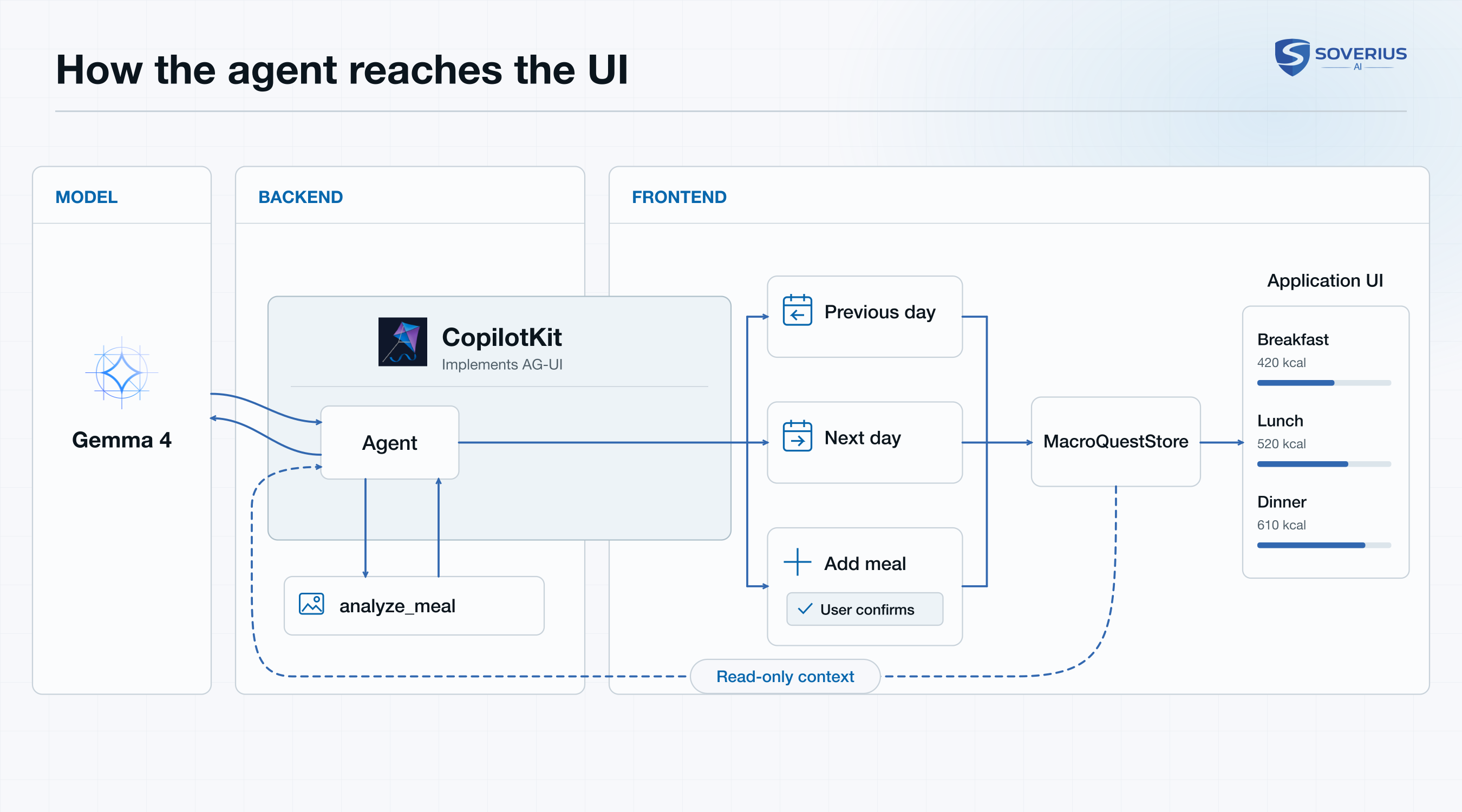
Frontend Tool Calling
Only our MacroQuestStore has direct access to the state. Everything that wants to change the state has to go through MacroQuestStore. That also applies to our agent.
We start with a simple task: navigating between days. Our store already provides the methods showPreviousDay and showNextDay.
In the agent’s terminology, executing an action is a tool call. We therefore expose these two methods as tools. They execute in the frontend, so the CopilotKit function for registering them is called registerFrontendTool.
src/app/macroquest/application/macro-quest-store.ts
registerFrontendTool({ name: 'show_previous_day', description: 'Switch to the previous day', parameters: z.object({}), handler: async () => this.showPreviousDay(),});registerFrontendTool({ name: 'show_next_day', description: 'Switch to the next day', parameters: z.object({}), handler: async () => this.showNextDay(),});We see that this is more than a reference to a function. Each tool also includes metadata: a name and, very importantly, a description.
The description should clearly explain what the tool does. It is primarily written for the model. The model receives these descriptions and uses them to decide which tools to call. If a description is unclear, the model might not recognise when it should use that tool.
We also define the parameters the tool accepts. These two tools take no arguments, so we use parameters: z.object({}), an empty Zod object schema.
To try it out, we can type “navigate to yesterday” into the chat. The model should be able to translate this into the right tool call.
Backend Tool Calling
CopilotKit’s chat also supports uploading images. Users can upload a photo of a meal and ask the agent to analyse its nutritional content. This requires a model that supports images as input, such as the Gemma 4 model we are using.
CopilotKit handles the image attachment for us.
We want to perform deterministic processing when images are uploaded. For example, we want to check the file size or inspect the image before passing it on to the model. This processing is again done through a tool call, which runs in the backend. We define the tool in our agent configuration by adding it to the tools property using defineTool.
server/agent.ts
export const agent = new BuiltInAgent({ model: 'openai/google/gemma-4-26b-a4b-it', apiKey: modelApiKey, prompt: 'You are MacroQuest, you are a food logger. Only answer questions about food and similar things.', maxSteps: 2, tools: [ defineTool({ name: 'analyze_meal', description: 'Analyze the meal provided as an image and return its nutritional content, including calories, carbs, and fat.', parameters: z.object({ description: z.string() }), execute: ({ description }, options?: ToolExecutionOptions) => analyzeMealToolHandler(description, options), }), ],});When a user uploads an image and asks for a meal analysis, the agent should call this tool. You can also inspect the tool call in our AG-UI / A2UI Inspector extension.
Human in the Loop
Next, we want the agent to be able to add the analysed meal to the meal log. For this, we create a frontend tool, but this time we require human confirmation before the meal is added.
We provide a component that displays the confirmation question in the chat and returns the user’s decision to CopilotKit.
src/app/macroquest/application/macro-quest-store.ts
registerHumanInTheLoop({ name: 'add_meal_to_log', description: 'Add the meal to the meal log.', parameters: mealDraftSchema, component: MealDraftConfirmation,});The confirmation component receives the tool call, including the proposed meal. It adds the meal through MacroQuestStore only when the user confirms, then returns the decision through respond.
src/app/macroquest/ui/meal-draft-confirmation.ts
@Component({ selector: 'mq-meal-draft-confirmation', template: ` <p>{{ title() }}</p> @if (toolCall().status === 'executing') { <div class="mt-2 flex gap-2"> <button type="button" class="btn btn-primary btn-sm" (click)="confirm()">Confirm</button> <button type="button" class="btn btn-ghost btn-sm" (click)="cancel()">Cancel</button> </div> } `,})export class MealDraftConfirmation { readonly toolCall = input.required<HumanInTheLoopToolCall<MealDraft>>(); private readonly store = inject(MacroQuestStore); protected readonly title = computed(() => this.toolCall().args.title ?? ''); protected confirm(): void { const call = this.toolCall(); if (call.status !== 'executing') return; this.store.applyMealDraft(call.args); call.respond({ accepted: true }); } protected cancel(): void { const call = this.toolCall(); if (call.status === 'complete') return; call.respond({ accepted: false }); }}Agentic Applications · 2 days
Learn moreStay Updated
Get new essays and workshop announcements in your inbox.